QR Code for Clinic & Dental Google Reviews
A clinic or dental practice Google reviews QR code opens your Google review page at checkout. Qravio's hosted Reviews & Feedback page shows every patient two buttons, "Leave a Google review" and "Send private feedback", so a patient with a concern about a wait, a bill or an explanation can raise it with the practice directly, while the Google button stays one tap away for everyone.
How QR codes work for clinic & dental google reviews
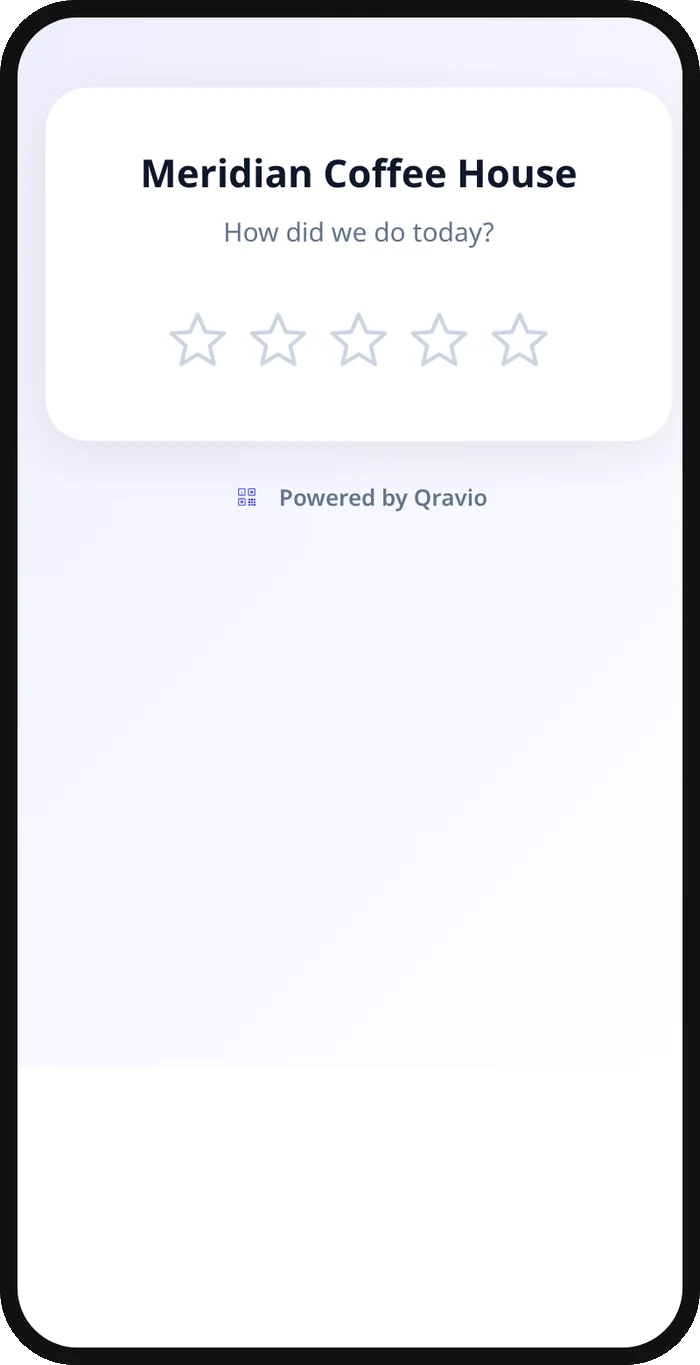
The free static QR below opens your Google review page directly for every scanner. With a Qravio account you can use the Reviews & Feedback QR type instead: scanning opens a page with your practice name and two equal buttons. The Google button redirects to your review page, where the patient chooses their own stars. The private feedback button opens a short form, with an optional rating that stays private, and the submission reaches your practice manager in the Leads dashboard.
What your clinic & dental google reviews QR opens
A real Qravio scan page, shown with demo content. Every part of it is editable after the code is printed.
Make your Clinic & Dental Google Reviews QR code
Build it free below, then create an account to make it dynamic — edit it anytime and track scans.
Set up your Clinic & Dental Google Reviews QR code
- 1Copy your practice's Google review link from your Business Profile.
- 2Build a free static QR below pointing straight to it, ready to place at check-out today.
- 3Create a free Qravio account to switch to the Reviews & Feedback QR type.
- 4Write a short private feedback question, such as "What could we improve?"
- 5Print it for the front desk, checkout counter, or after-visit summary, and keep the prompt simple: "How did we do today?"
Why use a Qravio QR code for clinic & dental google reviews
Two buttons, the same for every patient
Every patient sees "Leave a Google review" and "Send private feedback" together. Nobody is asked to rate first, and a patient who wants to review is on Google in one tap.
Concerns reach the right person
A patient who would rather raise a wait-time or billing concern privately can, and it lands in your Leads dashboard with an optional email alert to your practice manager.
Google stays one tap away
The Google review button is on the first screen, inside the feedback form and on the thank-you screen. Private feedback is an option, not a filter.
Edit it without reprinting
Change your review link, the wording or the feedback question anytime; the printed code keeps working.
Pro tip
Keep the private feedback question broad, like "What could we improve?", rather than asking about a specific clinical outcome, so patients feel comfortable sharing operational concerns like wait times or billing without it reading as a medical complaint form.
Clinic & Dental Google Reviews QR code FAQ
Is it appropriate to ask patients to rate their visit?
Asking for a Google review is fine as long as every patient gets the same invitation. Qravio's page offers the same two buttons to everyone and never conditions the Google button on a rating. Check any local rules on patient testimonials for your profession.
Where should the QR code go in a clinic or dental office?
Checkout counters and after-visit summary printouts work well, since the patient is already finishing up and the visit is fresh, without interrupting clinical time.
Can I ask about specific things like wait time or billing?
Yes. Customize the private feedback form's question to whatever matters most to your practice, such as "What could we improve?" or a specific prompt about scheduling or billing.
Do I need a paid plan for the hosted version?
The plain link QR below is free with no signup. The Reviews & Feedback QR, with the hosted page and private feedback form, is included on Qravio's Starter plan and above.
Create your Clinic & Dental Google Reviews QR code
Free to start. No watermark. Editable and trackable in under a minute.